
Blog
Why Your Smart Lights Are Not Responding

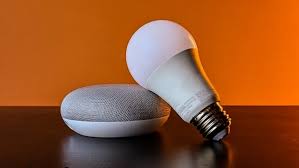
Why Your Smart Lights Are Not Responding & How to Fix Them Quickly
Smart lighting is often the first step many homeowners take into the world of home automation. Whether it’s setting the mood for a movie night or ensuring your lights turn off automatically when you leave for work, smart bulbs offer unparalleled convenience. However, that convenience quickly turns into frustration when you find your smart lights are not responding to voice commands or app triggers.
When a smart bulb becomes “unreachable,” it can disrupt your entire daily routine. Fortunately, most smart lighting issues are software-related or caused by simple environmental factors rather than permanent hardware failure. In this guide, we will break down the most common reasons your smart lights are failing and provide the quickest solutions to get them glowing again.
1. The “Physical Switch” Problem
The most common reason smart lights stop responding is also the simplest: someone turned off the physical wall switch. Smart bulbs require a constant flow of electricity to remain connected to your Wi-Fi or Zigbee network. When the wall switch is flipped to the “off” position, the radio inside the bulb loses power, making it impossible for your app or voice assistant to communicate with it.
How to Fix It:
Ensure all physical switches connected to your smart bulbs remain in the “on” position at all times. If you have family members or guests who habitually flip the switches, consider installing a smart switch cover or a dedicated smart button. This ensures the bulb always has the power it needs to stay online.
If you find that your bulbs are powered on but still won’t sync, you might be dealing with broader network issues. You can learn more about this in our guide on how to fix smart home devices that keep disconnecting.
2. Network Congestion and Signal Range
Most smart bulbs operate on the 2.4GHz Wi-Fi frequency. This frequency is excellent for traveling through walls, but it is also highly crowded. If you have dozens of smart bulbs, plugs, and cameras all fighting for space on a standard ISP-provided router, some bulbs will inevitably drop off the network.
Troubleshooting Signal Issues:
- Check Distance: If the unresponsive bulb is at the far end of the house, it may be struggling to maintain a stable connection. Try swapping it with a bulb closer to the router to see if the problem persists.
- Minimize Interference: Large appliances, mirrors, and even Christmas lights can interfere with Wi-Fi signals. Keep your router in an open, central location.
- Add a Mesh Node: If you have “dead zones” in your home, a mesh Wi-Fi system can provide the coverage needed to keep every bulb connected regardless of its location.
3. Problems with the Smart Hub or Bridge
Many high-end smart lighting systems, such as Philips Hue or IKEA TRÅDFRI, use a central “Bridge” or “Hub” to communicate. Instead of every bulb connecting to your Wi-Fi, they connect to the hub using Zigbee or Z-Wave protocols. If your lights are not responding, the issue might not be the bulbs themselves, but the hub that controls them.
How to Fix Hub Issues:
- Check the indicator lights on your bridge. Most have a light that indicates internet connectivity and a light for the Zigbee channel.
- Restart the hub by unplugging it for 60 seconds.
- Ensure the hub is plugged directly into your router via an Ethernet cable rather than relying on a Wi-Fi extender.
For those who use integrated systems, remember that sometimes the issue lies with the control interface. If your hub is fine but the app is lagging, check out our article on why smart home apps stop working for a step-by-step resolution.
4. Outdated Firmware and App Glitches
Manufacturers frequently release firmware updates to improve the stability of smart bulbs. If your bulb is running on software that is several versions old, it may become incompatible with your phone’s OS or your voice assistant’s cloud service. Similarly, a glitch in the smart home app can prevent commands from reaching the bulb.
Quick Fixes:
- Force Close the App: Sometimes the app just needs a refresh. Close it entirely and reopen it.
- Check for Updates: Open your lighting app (Philips Hue, LIFX, Tuya, etc.) and look for a “Firmware Update” section in the settings.
- Clear Cache: If you are on Android, clearing the app cache can often resolve communication lag without needing to delete your settings.
5. Resetting Your Smart Lights (The Hard Reset)
If your smart lights are still not responding after checking power and network stability, a factory reset is the next step. Every brand has a specific “rhythm” for resetting their bulbs, usually involving toggling the power switch a certain number of times.
Common Reset Procedures:
- Philips Hue: If you have a Hue Dimmer Switch, hold the “On” and “Off” buttons close to the bulb for 10 seconds. Otherwise, you must use the Hue App to “Remove” and re-add the bulb.
- LIFX: Turn the light off and on at the wall 5 times in a slow, steady rhythm. The bulb will then cycle through colors or flash to indicate it is in pairing mode.
- Generic (Tuya/Smart Life): Turn the switch On-Off-On-Off-On (usually 3 to 5 times). The bulb will start blinking rapidly, signaling it is ready to be reconfigured.
Keep in mind that if your smart bulbs are plugged into a smart plug that is failing, the bulb isn’t the problem. You can find specific tips on fixing smart switches and smart plugs to narrow down the hardware culprit.
6. Voice Assistant Integration Failures
Sometimes the lights work perfectly inside the manufacturer’s app, but Alexa or Google Home says, “Sorry, that device is not responding.” This indicates a breakdown in the “Cloud-to-Cloud” communication between the two services.
How to Fix Voice Sync Issues:
- Open your Alexa or Google Home app.
- Go to “Skills” or “Services” and find the brand of your lights.
- Disable the skill and then re-enable it. You will likely have to log in again to authorize the connection.
- Ask your assistant to “Sync my devices.”
7. Dealing with Power Surges and Voltage Drops
Smart bulbs are essentially small computers inside a glass housing. They are sensitive to power fluctuations. A minor power surge can “scramble” the bulb’s internal memory, causing it to lose its pairing data. Conversely, if your home experiences frequent voltage drops, the Wi-Fi chip inside the bulb may not receive enough power to stay active.
If a bulb stops responding after a storm or a power cut, it has likely entered “Setup Mode.” You will see it flashing or glowing at a dim level. In this case, you will need to delete the device from your app and add it again as if it were brand new.
Summary Checklist for Responding Smart Lights
To keep your smart lighting system running smoothly, follow this quick maintenance checklist:
- Keep physical switches ON: Use guards or smart buttons to prevent manual shutdowns.
- Limit Wi-Fi load: Move high-bandwidth devices (like laptops) to the 5GHz band to leave the 2.4GHz band open for your lights.
- Regularly update: Check for firmware updates at least once a month.
- Static IPs: For critical lighting (like outdoor security lights), assign a static IP address in your router settings to prevent IP conflicts.
Conclusion
Unresponsive smart lights are rarely a sign that the bulb is “broken.” More often, it is a simple matter of restoring power, clearing a network bottleneck, or refreshing a software connection. By following the steps outlined above, you can quickly troubleshoot and fix 99% of smart lighting issues, ensuring your home stays bright and automated.
If you have tried all these steps and a specific bulb still refuses to connect, it may be a hardware defect. Most reputable smart home brands offer a 2-year warranty, so don’t hesitate to contact support if a bulb fails prematurely after a factory reset attempt.