
Blog
Why Smart Home Apps Stop Working

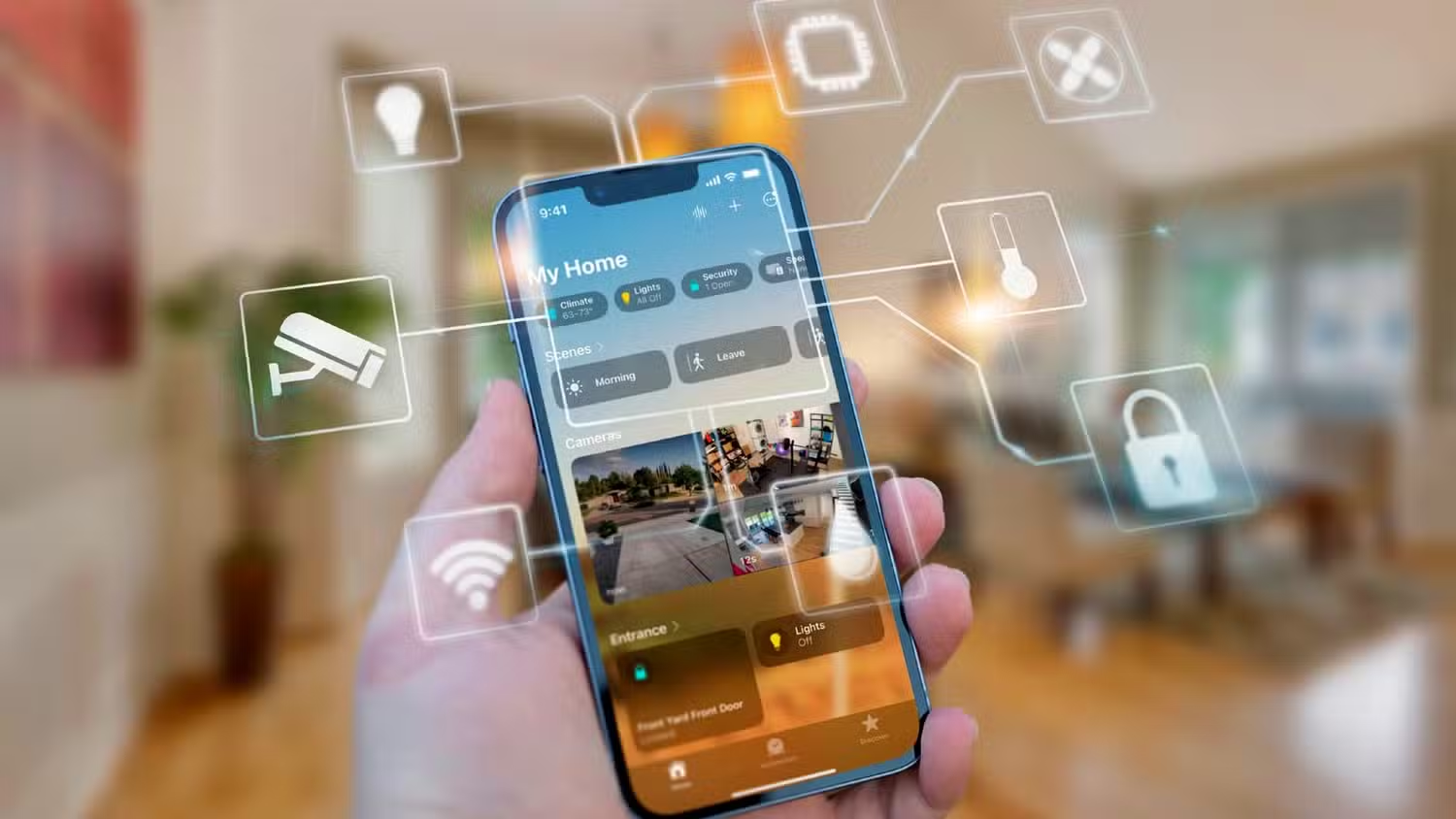
Why Smart Home Apps Stop Working: Step-by-Step Troubleshooting Guide
In a modern automated house, your smartphone is the universal remote. Whether you use Alexa, Google Home, Apple HomeKit, or a proprietary brand app like Tuya or Philips Hue, these applications serve as the critical bridge between your commands and your hardware. However, it is a common frustration for users to find their smart home apps stop working, showing “Device Offline” errors, or crashing entirely upon launch.
When a smart home app fails, it doesn’t necessarily mean your devices are broken. More often, the issue lies in the communication layer—the “digital handshake” between the app, the cloud server, and your local Wi-Fi. In this guide, we will explore why smart home apps stop working and provide a detailed, step-by-step troubleshooting process to restore your home’s automation.
Common Reasons for Smart Home App Failure
Before diving into the fixes, it helps to identify the symptoms. Is the app frozen? Are the devices showing as “Unresponsive”? Understanding the root cause will save you hours of unnecessary factory resets. Common culprits include:
- Cloud Server Outages: Most smart home apps rely on a “Cloud-to-Cloud” connection. If the manufacturer’s server goes down, your app cannot send commands to your devices.
- Local Network Permissions: Modern smartphone operating systems (iOS and Android) have strict privacy settings. If the app loses permission to “see” your local network, it won’t be able to find your devices.
- Cache Corruption: Over time, the temporary files stored by the app can become corrupted, leading to lag or crashes.
- Software Incompatibility: An OS update on your phone can sometimes break the functionality of an older version of a smart home app.
- Account Syncing Issues: If you have recently changed your password or updated your security settings, the app may lose its authentication token.
If your app is open but shows that your hardware is disconnected, you may also want to look at our guide on how to fix smart home devices that keep disconnecting to rule out hardware-specific Wi-Fi issues.
Step 1: Check the Cloud Service Status
The first step in troubleshooting is determining if the problem is on your end or the manufacturer’s end. Because most smart devices are not “local only,” they require a heartbeat signal from a remote server. If the server is down, no amount of restarting your router will fix the app.
How to Check:
- Visit a site like Downdetector and search for your app provider (e.g., “Amazon Alexa,” “Google Home,” or “Smart Life”).
- Check the official social media channels of the brand. Manufacturers often post updates regarding scheduled maintenance or unexpected outages.
- Try using a different device. If the app works on your tablet but not your phone, the issue is local to your phone. If it doesn’t work on either, the issue is likely a server outage.
Step 2: Verify Local Network Permissions
On iOS and newer versions of Android, apps must be granted specific permission to access your “Local Network” or “Bluetooth.” If these were accidentally toggled off during an update, your smart home app will stop working because it can no longer “talk” to the devices in your room.
For iPhone Users:
Go to Settings > Privacy & Security > Local Network. Ensure the toggle is switched to ON for your smart home apps. Without this, the app can only communicate via the cloud, which is slower and more prone to errors.
For Android Users:
Go to Settings > Apps > [Your App Name] > Permissions. Ensure that “Nearby Devices” and “Location” are enabled. Many smart home apps require Location services to identify the Wi-Fi SSID you are connected to.
Step 3: Clear Cache and App Data
Smart home apps constantly download status updates, icons, and logs. This “cache” can eventually become bloated or corrupted. If your app is slow to respond or crashes when you try to open a specific room, clearing the cache is the most effective fix.
How to Clear Cache (Android):
- Go to Settings > Apps.
- Select the smart home app that is failing.
- Tap on “Storage.”
- Tap “Clear Cache.” (Do not tap “Clear Data” unless you are prepared to log back in and set up your preferences again).
For iPhone Users:
iOS does not have a “Clear Cache” button for individual apps. Instead, you must “Offload” the app. Go to Settings > General > iPhone Storage > [Your App] > Offload App. This removes the app but keeps your data. Reinstalling it from the same screen often clears out the glitches.
If you find that your lights specifically are failing to appear in the app after a cache clear, check our specialized article on why your smart lights are not responding for lighting-specific fixes.
Step 4: Resolve Account and Syncing Issues
Sometimes the app works fine, but it “forgets” your devices. This often happens after a major update to the app or when a third-party integration (like linking Tuya to Alexa) expires.
Re-Authenticating the Link:
If you use a voice assistant app to control other brands, try unlinking and re-linking the service. In the Alexa app, this is done under “Skills & Games.” In Google Home, look for “Works with Google.” Disabling the skill and re-enabling it forces a fresh sync of all your devices, which often fixes “Not Responding” errors.
Step 5: Address Wi-Fi and Router Bottlenecks
If your smart home app is working but shows devices as “Offline” intermittently, the problem might be your router’s DHCP table. Every time your phone or device connects to Wi-Fi, the router assigns it an IP address. If the router is overwhelmed, it might “drop” the connection to the app to save bandwidth for a high-traffic device like a Netflix stream.
The “Static IP” Solution:
Log into your router settings and assign a “Static IP” or “DHCP Reservation” to your smartphone and your main smart home hubs. This ensures that the app always knows exactly where to look for the hardware on the network. For devices that move through the house, such as smart locks, this stability is vital. You can read more about mechanical vs. software lock failures in our guide on how to repair smart door locks.
Step 6: When to Perform a Fresh Reinstall
If you have cleared the cache, checked permissions, and verified the servers are up, but the app still fails, a fresh reinstall is necessary. This is different from “Offloading” because it deletes all local configuration files that might be causing a conflict.
- Delete the app from your phone.
- Restart your phone (this clears the RAM and temporary system files).
- Download the latest version from the App Store or Google Play.
- Log in and wait for the “Sync” to complete. Note: Most modern smart home systems store your device list in the cloud, so you won’t lose your lights or switches by deleting the app.
Step 7: Check for Firmware and OS Updates
Software is a two-way street. Your smart home app might be up to date, but your phone’s Operating System (OS) might be too old to support its latest features. Conversely, if you just updated your phone to a “Beta” version of an OS, many smart home apps will stop working because they haven’t been optimized for the new software yet.
- Update your phone: Ensure you are running the latest stable version of iOS or Android.
- Update your devices: Once you get back into the app, check the “Settings” of each device to see if a firmware update is available. Manufacturers often release patches that fix the very app-communication bugs you are experiencing.
The Importance of a Dedicated Smart Home Controller
To prevent smart home app issues from affecting your daily life, many power users recommend using a dedicated tablet as a “Home Dashboard.” By leaving an inexpensive tablet mounted on a wall with the smart home app permanently open, you reduce the variables. A dedicated tablet doesn’t leave the house, doesn’t switch between cellular and Wi-Fi data, and doesn’t have the same permission-shifting issues as a primary smartphone.
Conclusion
When smart home apps stop working, it is rarely a sign of a “broken” home. It is usually a symptom of a digital bottleneck—be it a cloud outage, a permission error, or a corrupted cache. By following this step-by-step troubleshooting guide, you can identify where the communication is breaking down and fix it quickly.
Remember: Start with the simplest fix (restarting the app) before moving to the most complex (reconfiguring router settings). With a little patience and the right troubleshooting steps, you can ensure your smart home remains as reliable as it is convenient.