
Blog
How to Reset and Reconnect Smart Home Devices

How to Reset and Reconnect Smart Home Devices
In the world of technology, there is a legendary piece of advice that solves nearly every problem: “Have you tried turning it off and back on again?” For smart home enthusiasts, this “reset” is often the only way to clear out digital cobwebs, fix stubborn connectivity bugs, and restore order to an automated household. However, a reset is more than just pulling a plug; there are different levels of resetting, each serving a specific purpose.
Whether you are dealing with a smart bulb that refuses to change color or a security camera that has gone completely dark, knowing how to properly reset and reconnect your smart home devices is a vital skill. In this guide, we will explore the different types of resets, the exact moments when a factory reset is necessary, and how to get your devices back online without losing your mind.
Understanding the Difference Between a Soft and Hard Reset
Before you reach for the “Reset” button, it is important to understand what you are about to do. Performing the wrong type of reset can lead to unnecessary work, such as having to rename all your devices and rebuild your automation routines.
The Soft Reset (Power Cycle)
A soft reset is essentially a reboot. It involves cutting the power to the device for a short period (usually 30 seconds) and then restoring it. This clears the device’s temporary memory (RAM) and forces it to re-establish a connection with your Wi-Fi router. A soft reset does not delete your settings, schedules, or account information. This should always be your first step when a device becomes “unresponsive.”
The Hard Reset (Factory Reset)
A hard reset, also known as a factory reset, returns the device to the exact state it was in when it left the factory. This wipes all stored data, including Wi-Fi passwords, user accounts, and local settings. You should only perform a hard reset when a soft reset fails, or if you are planning to give the device to someone else. After a hard reset, the device must be set up from scratch in its respective app.
If you find yourself constantly performing soft resets, you may have an underlying network issue. You can learn how to stabilize your network in our guide on how to fix smart home devices that keep disconnecting.
When Is the Right Time to Reset Your Smart Home Devices?
Resetting shouldn’t be a daily occurrence. If you find yourself resetting devices every week, there is a deeper hardware or network problem. However, there are four specific scenarios where a full factory reset is the best course of action:
1. Constant Connectivity Failures
If a smart plug or light bulb frequently shows as “Offline” and a simple power cycle doesn’t fix it, the internal firmware might be corrupted. A factory reset forces the device to download a fresh configuration, which often resolves deep-seated software glitches.
2. Preparing to Sell or Gift Your Hardware
Smart devices often store sensitive information, including your Wi-Fi SSID and password. Before selling an old smart camera or giving a smart speaker to a friend, you must perform a factory reset to protect your privacy and allow the new owner to link the device to their own account.
3. Upgrading Your Wi-Fi Router
If you get a new router and change your Wi-Fi name (SSID) or password, many smart devices will lose their connection. While some modern apps allow you to “Update Wi-Fi Settings,” many older devices require a full reset and re-pairing process to recognize the new network credentials.
4. Unresponsive Voice Assistant Commands
Sometimes a device works perfectly in its native app (like the Tuya or Hue app) but refuses to respond to Alexa or Google Home. If unlinking and re-linking the account doesn’t work, a factory reset of the device is often the final “nuclear option” to force a sync.
How to Factory Reset Common Smart Home Devices
Every manufacturer has a different method for initiating a factory reset. Here are the most common procedures for various categories of smart home tech:
Smart Lights and Bulbs
Most smart bulbs do not have buttons. To reset them, you must perform a “toggle dance.” This usually involves turning the light switch Off and On in a specific rhythm (e.g., 5 times, holding for 2 seconds each time). The bulb will eventually flash or pulse to indicate it has entered “Setup Mode.”
Smart Plugs and Power Strips
Almost all smart plugs have a physical power button. To factory reset, press and hold this button for 10 to 15 seconds. You will usually hear a “click” from the internal relay, and the LED indicator will start blinking rapidly (usually blue or amber).
Smart Security Cameras
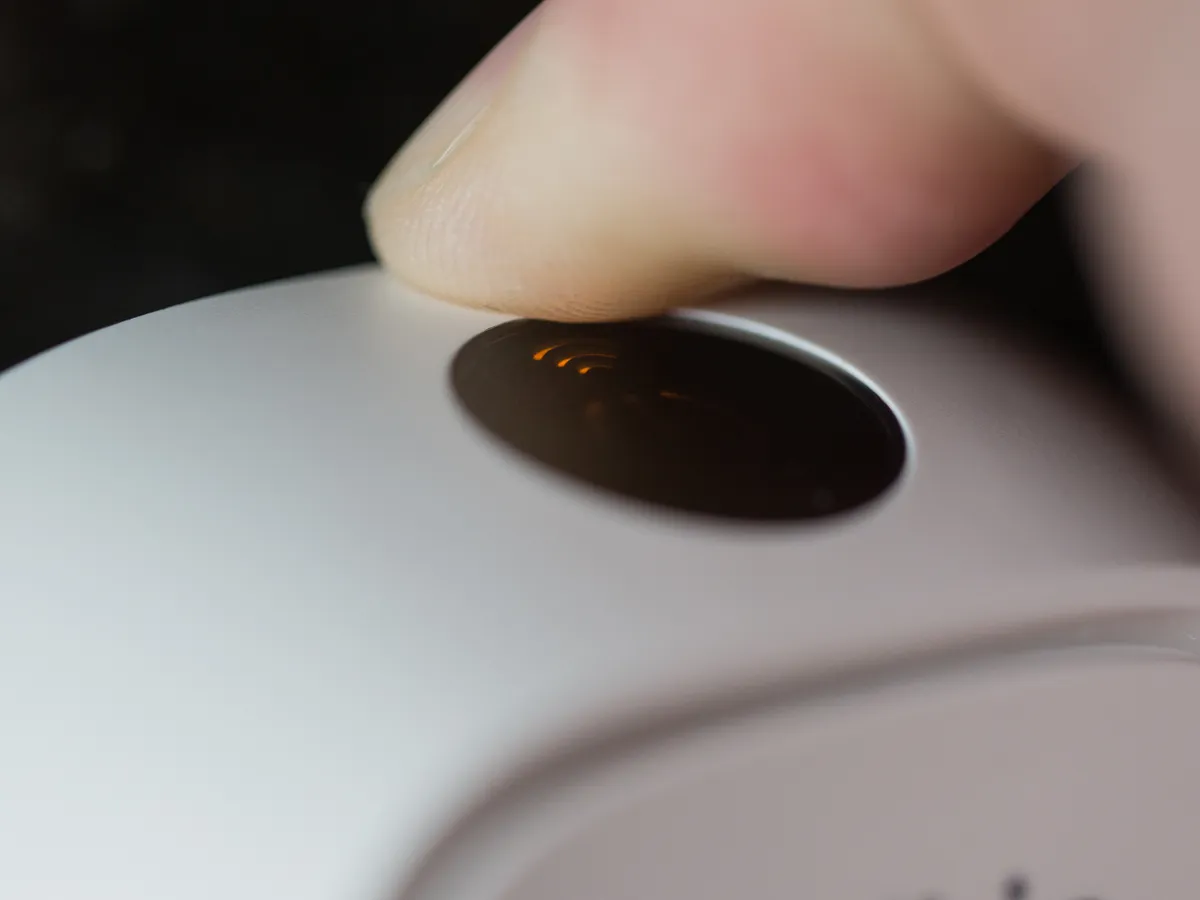
Because cameras are security-sensitive, they often require a physical interaction to reset. Look for a tiny “pinhole” button on the back or bottom of the device. You will need a paperclip or a SIM ejector tool to press and hold this button for 20 seconds. Some cameras, like those from Nest or Ring, may require you to hold the main setup button for a specific duration.
Smart Door Locks
Smart locks are more complex because they involve security codes and master keys. Resetting them usually involves removing the battery cover and holding a dedicated “Reset” button while re-inserting the batteries. Note that this will delete all entry codes. For more help with lock hardware, check our article on how to repair smart door locks.
Step-by-Step: How to Properly Reconnect Your Devices
Once the device is reset and the LED is blinking (indicating it is in pairing mode), the reconnection process begins. Follow these steps to ensure a successful setup:
- Switch to 2.4GHz Wi-Fi: Most smart devices cannot connect to 5GHz networks. Temporarily switch your smartphone to the 2.4GHz band before starting the setup.
- Enable Bluetooth and Location: Modern smart home apps use Bluetooth to “find” the device during the initial handshake. Ensure your phone’s Bluetooth and GPS are turned on.
- Remove the Old Device Instance: Before adding the “new” reset device, go into your app and delete the old “Offline” version of that device. This prevents duplicate entries and naming conflicts.
- Enter Wi-Fi Credentials Carefully: Most setup failures are caused by a simple typo in the Wi-Fi password. Double-check your entry!
If the app refuses to find the device even after a reset, the issue might be with the app’s cache or permissions. Refer to our guide on troubleshooting smart home apps for a deeper look at software-side fixes.
Troubleshooting Common Reconnection Errors
Sometimes, even after a factory reset, a device refuses to reconnect. Here is how to handle the most common errors:
- “Device Not Found”: This usually means the device isn’t actually in pairing mode. Ensure the light is blinking rapidly. If it is blinking slowly, it may be in “AP Mode” (Access Point mode), which requires a different setup path in the app.
- “Timed Out During Connection”: This is often a range issue. Move the device closer to the router for the initial pairing, then move it back to its permanent location once the setup is complete.
- “Incorrect Password”: As mentioned, this is the #1 cause of failure. Also, ensure your Wi-Fi password does not contain special characters that some older smart chips cannot process.
Best Practices After a Factory Reset
Once your device is back online, don’t just stop there. A few extra steps can prevent you from needing another reset in the future:
- Update Firmware Immediately: The first thing a reset device does is check for updates. Allow it to install the latest firmware to fix the bugs that likely caused the need for a reset in the first place.
- Assign a Static IP: Use your router’s settings to assign a reserved IP address to the device. This provides a permanent “address” on the network, making it much harder for the device to get “lost” or go offline.
- Rename and Re-Group: Give the device a clear, logical name (e.g., “Kitchen Overhead Light”) and add it back into your Alexa or Google Home groups and routines.
Conclusion
Resetting and reconnecting smart home devices is the “oil change” of the digital age. It is a necessary maintenance step that keeps your ecosystem running smoothly. While it can be a tedious process—especially if you have dozens of bulbs—doing it correctly ensures that your home remains secure, responsive, and truly smart.
Remember to start with a soft reset before committing to a full factory wipe. By understanding the specific reset rhythms of your devices and ensuring your network is prepared for the reconnection, you can solve almost any smart home glitch in minutes. Keep your firmware updated and your Wi-Fi managed, and you’ll find yourself reaching for that reset button less and less over time.