
Blog
Why Your Smart Security Camera Is Offline

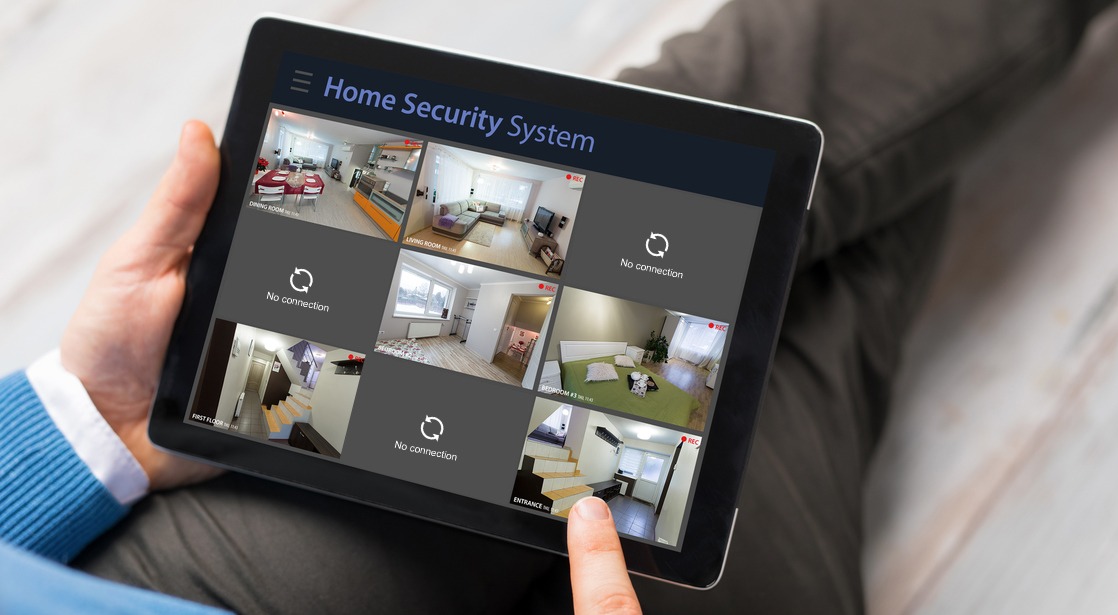
Why Your Smart Security Camera Is Offline & How to Get It Back Online
Smart security cameras are the sentinels of the modern home. Whether you are using them to deter package thieves, monitor your pets, or simply keep an eye on your front door, they provide a sense of safety and peace of mind. However, that peace of mind is instantly shattered when you open your app only to see a “Device Offline” or “No Connection” message. Because cameras are high-bandwidth devices, they are often the first gadgets to fail when a home network is under stress.
A smart security camera going offline isn’t just an inconvenience; it’s a security gap. In this guide, we will explore the technical reasons why cameras drop their connections and provide a comprehensive, step-by-step repair guide to restore your video feed quickly and permanently.
The Critical Role of Upload Speed in Camera Connectivity
Before looking at hardware failures, it is important to understand the unique requirements of a security camera. Unlike a smart bulb or a smart plug, which only sends tiny bursts of data, a camera must constantly “upload” a high-definition video stream to the cloud.
Most internet plans prioritize “Download Speed” (for watching movies) over “Upload Speed” (for sending video). If your upload speed is lower than 2 Mbps per camera, your device will frequently struggle to maintain a connection. If you have four or five cameras running simultaneously, your network may simply be “choking” on the data, leading to the offline status you are seeing.
If you suspect your entire network is struggling to keep up with your smart home’s demands, you should refer to our detailed guide on how to fix Wi-Fi issues affecting smart home devices for network optimization tips.
Step 1: Check the Power Source (Battery vs. Wired)
The most common cause for a camera going offline is a simple loss of power. Depending on whether your camera is battery-operated or hardwired, the troubleshooting steps differ.
For Battery-Powered Cameras (Ring, Arlo, Eufy):
- Cold Weather: Extreme cold can cause lithium-ion batteries to stop discharging effectively. If it’s freezing outside, your camera might show as “Offline” even if it had 20% charge left.
- Battery Health: Over time, batteries lose their capacity. Check the app for the last known battery percentage. If it was below 10%, the camera likely entered a deep sleep mode to prevent permanent battery damage.
- Solar Panel Issues: If your camera uses a solar charger, ensure the panel is clean. Dust or bird droppings can significantly reduce the charging efficiency, leading to a dead battery during the night.
For Hardwired and Plug-in Cameras:
- Loose Cables: Outdoor cameras are subject to wind and vibrations. Check the USB or power cable at both the camera end and the outlet end.
- GFCI Tripping: If your outdoor outlet is a GFCI type, it may have tripped due to moisture. Press the “Reset” button on the outlet itself.
- Power Surges: A minor power spike can sometimes “lock up” the camera’s internal power regulator. Unplug the camera, wait 60 seconds, and plug it back in to perform a hard reboot.
Step 2: Analyze Wi-Fi Signal Strength (RSSI)
If your camera has power but remains offline, the Wi-Fi signal is likely the culprit. Smart cameras are often placed on the exterior of the house, meaning the signal must pass through brick, stucco, or insulation.
In your camera’s app settings, look for a metric called RSSI (Received Signal Strength Indicator).
- 0 to -50 RSSI: Excellent signal.
- -50 to -70 RSSI: Good to fair signal; may experience occasional lag.
- -70 and lower: Poor signal; the camera will frequently go offline or fail to show a “Live View.”
If your RSSI is poor, you may need a Wi-Fi extender or a mesh node placed closer to the camera. Metal window screens and mirrors inside the house can also reflect Wi-Fi signals away from exterior cameras. For more general advice on maintaining connections for all your gadgets, read how to fix smart home devices that keep disconnecting.
Step 3: Resolve Router and Bandwidth Bottlenecks
Your router has a limit on how many devices it can handle at once. When you reach that limit, the router will prioritize “active” devices like a laptop or a TV, and “kick” the camera off the network.
The DHCP Conflict Fix
Sometimes, the router tries to give the camera’s IP address to another device (like a new smartphone). This creates a conflict, and the camera goes offline. To fix this, log into your router settings and assign a **Static IP address** specifically to each of your security cameras. This ensures the router always “saves a spot” for the camera on the network.
Frequency Interference
Most cameras use the 2.4GHz band. If your neighbors are using the same Wi-Fi channel, the interference can cause the camera to drop out. Change your router’s 2.4GHz channel to 1, 6, or 11 to find the clearest path for your video stream.
Step 4: Troubleshoot the App and Cloud Services
Occasionally, the camera is working perfectly, but the app is failing to display the feed. This happens if the manufacturer’s cloud servers are undergoing maintenance or if the app cache on your phone is corrupted.
How to Verify:
- Check for Cloud Outages: Check the “Status” page for your brand (e.g., Ring Status or Nest Status). If their servers are down, you simply have to wait.
- Force Close the App: Completely shut down the app on your phone and restart it.
- Check App Permissions: Ensure your app has permission to use “Background Data” and “Local Network Access” in your phone’s settings.
If you find that the app is the main source of your frustration, we have a specialized guide on why smart home apps stop working that can help you clear up software glitches.
Step 5: Firmware and Software Updates
A camera is a small computer that runs “Firmware.” If the firmware is outdated, it may develop bugs that cause the Wi-Fi chip to crash or the video encoder to hang.
Manufacturers regularly push updates to improve security and connectivity. If your camera manages to come online for a few minutes, immediately check the “Settings” or “Device Health” section for a “Firmware Update” button. Keeping your camera updated is the best way to prevent the “Offline” bug from returning. Similarly, check the App Store or Google Play Store to ensure the mobile app itself is the latest version.
Step 6: Resetting and Re-pairing the Camera
If all else fails, a factory reset is the final option. This will wipe all settings from the camera and force it to re-establish a handshake with your router and the cloud.
How to Factory Reset:
- Locate the physical “Reset” button on the camera (often hidden behind a rubber flap or near the SD card slot).
- Press and hold the button for 15–30 seconds while the device is powered on. The light on the camera will usually flash a specific color (like amber or red).
- Delete the camera from your app.
- Go through the “New Device Setup” process as if you just took the camera out of the box.
Environmental and Physical Maintenance
Sometimes the “Offline” status is caused by physical damage you can’t see from the ground. Spiders love to build webs over the infrared (IR) sensors of cameras, which can cause the camera to overheat at night as the IR lights reflect back into the lens. Moisture can also seep into the charging port of outdoor cameras, causing a short circuit.
Maintenance Checklist:
- Clean the Lens and Sensors: Use a soft microfiber cloth to wipe the lens and the motion sensor.
- Check for Insects: Use a bit of peppermint oil or a specialized insect spray (not directly on the lens) around the camera mount to keep spiders away.
- Check the Seal: Ensure the rubber gasket covering the charging port or the SD card slot is fully seated and not dry-rotted from sun exposure.
Conclusion
Fixing a smart security camera that keeps going offline requires a mix of network management and physical troubleshooting. By ensuring your upload speeds are sufficient, optimizing your router’s channel, and keeping your firmware updated, you can eliminate the vast majority of connectivity issues.
A security camera is your home’s most vital witness. By taking the time to set a static IP and ensuring a strong RSSI signal, you ensure that when you need your video feed the most, it will be there, online and ready to record. Don’t wait for an incident to happen—troubleshoot your “Offline” cameras today and keep your home’s perimeter secure.